How to make an ERD
- Start from. In step 1 choose a table of entities (your tables and their columns), a blank canvas, or one of the four examples to see a finished ERD: an online shop in crow's foot notation or in Chen notation, each with plain boxes or with a colour bar on top.
- Type the tables. In step 2 write one row for each column: the table (Entity), the column (Attribute) and, for a key, PK, FK or UK in Key. To join two tables, write the other one in Related entity and, if you like, the ratio in Relationship (1:N, N:1, N:N or 1:1). Copy the cells from Excel and paste them in, or open an Excel or CSV file.
- Choose the notation. Under Notation pick Crow's foot or Chen, and a direction, top to bottom or left to right. Press Draw ERD: the page places the tables, the "one" side above the "many" side.
- Add and join tables. Drag an Entity from the list onto the paper, or click it to add it in the middle of what you see. Point at a table and four blue dots appear; drag from a dot to another table and a line joins them. Let go on the empty paper and a new table appears there, already joined.
- Change a line. Click a line and use Line start and Line end in the bar above the paper to choose One, Many, Exactly one, Zero or one, One or many or Zero or many. In Chen notation the bar offers the letter at each end and a single or double line.
- Type in a table. Double-click a table (or click it once more when it is chosen). The first line is the table's name and each line after it is one column, with PK, FK or UK after it for a key. Enter keeps the words; Shift+Enter starts a new line. The table grows with its columns.
- Style and download. Choose colors, fonts and line widths in the bar, press Auto arrange to place every table again, then download a PNG or SVG picture, copy the image, or save a file you can open here later to keep editing.
Make an ERD from a table
Each row of the table is one column of one entity (one attribute), or one relationship. The five columns:
- Entity is the table's name (Customer). The same name in several rows is one table.
- Attribute is a column of that table (customer_id). Leave it empty on a row that only joins two tables. A data type can be typed after the name (name varchar(50)); it is shown as typed.
- Key is PK (primary key), FK (foreign key) or UK (unique); write two with a comma (PK, FK). In Chen notation you can also write + after a foreign key that helps to identify its table (a weak entity), MV for a column with many values and DER for a value worked out from other columns.
- Related entity is the table to join this one to. On an attribute row (a foreign key such as customer_id in Order) the line is many to one; on a row with no attribute it is one to many.
- Relationship says how many on each side, and may add the words on the line. The table of examples below shows what each way of writing it draws.
A small example: a customer places orders. Six rows give two tables and one line.
| Entity | Attribute | Key | Related entity | Relationship |
|---|---|---|---|---|
| Customer | customer_id | PK | ||
| Customer | name | |||
| Customer | Order | 1:N places | ||
| Order | order_id | PK | ||
| Order | customer_id | FK | ||
| Order | order_date |
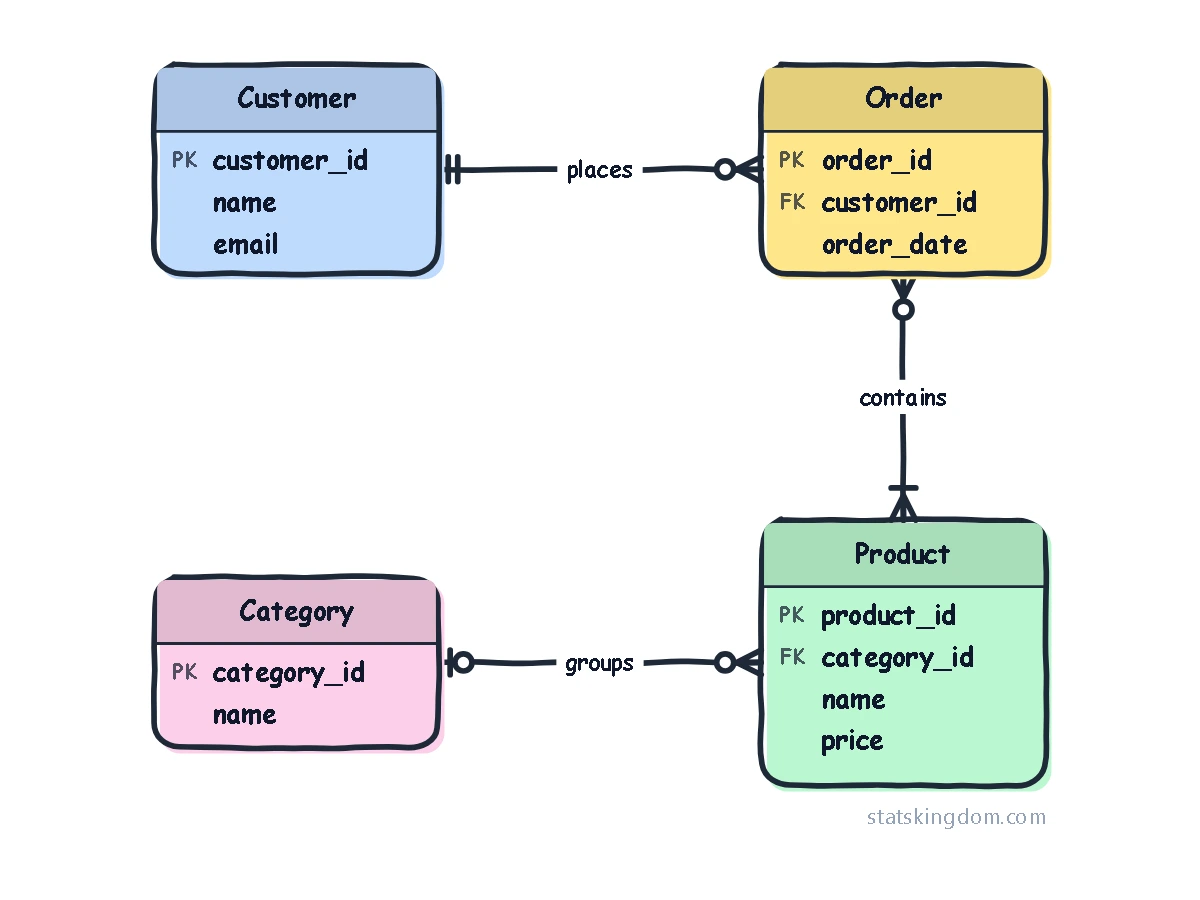
Here is what the page draws from those rows, in each notation:
Crow's foot notation
Crow's foot is the notation most database tools use. Each entity is one box: its name on a band at the top, one attribute on each line below it, and its key (PK, FK, UK) in a column of its own. A line joins two entities, and the mark at each end of the line says how many rows of that table can go with one row of the other table. Read a mark next to the table it touches. The six marks:
| Mark | Name | Means |
|---|---|---|
| One | at most one; says nothing about whether it is required | |
| Many | any number; says nothing about whether it is required | |
| Exactly one | mandatory one: always one, never none | |
| Zero or one | optional one: one or none | |
| One or many | mandatory many: at least one | |
| Zero or many | optional many: none, one or more |
For example, two bars at the Customer end of a line and a circle and a foot at the Order end read: each order has exactly one customer (the two bars), and one customer has zero or many orders (the circle and the foot). The two bars, the circle and bar, the bar and foot, and the circle and foot are the four full marks. The single bar (one) and the single foot (many) say how many and leave open whether that side is required.
Chen notation
Chen notation, from Peter Chen's 1976 paper, is the older way to draw an ERD and is still common in textbooks and database courses. Each entity is a plain box, each attribute is an oval joined to its box (a primary key is underlined), and each relationship is a diamond between the two boxes, with 1, N or M on the lines to say how many. A double line means that every row of that entity must take part in the relationship (mandatory), and a single line that it may (optional). A double box and a double diamond are a weak entity, which cannot be identified without its parent.
The page reads the same table for both notations. Choose Chen under Notation in step 2 before you press Draw ERD, or pick example (c) or (d) in step 1. A column that is a foreign key gets no oval, because the diamond already joins the two tables.
What to write in Relationship: crow's foot and Chen side by side
Write the mark for the table in the row first and the mark for the Related entity second. In each picture the left box is the table in the row (Customer, say) and the right box is the Related entity (Order). The first picture is crow's foot notation; the second is the same relationship in Chen notation, where the diamond is the relationship, 1 and N say how many, and a double line means that table must take part.
| Relationship | Crow's foot | Chen |
|---|---|---|
| 1:NAlso read: one to manyA bar on the table in the row, the foot on the related entity. | ||
| N:1Also read: many to oneThe foot on the table in the row, a bar on the related entity. | ||
| 1:1Also read: one to oneA bar at both ends. | ||
| N:NAlso read: N:M, many to manyThe foot at both ends. Real databases split it with a table in the middle. | ||
| 1:N placesAlso read: places (1:N)Words after the ratio go on the line. | ||
| exactly one to zero or manyAlso read: 1..1 to 0..*, ||--o{What the page draws when you leave Relationship empty. | ||
| exactly one to one or manyAlso read: 1..1 to 1..*, ||--|{Mandatory on both sides. | ||
| zero or one to zero or manyAlso read: 0..1 to 0..*, |o--o{Optional on both sides. | ||
| zero or one to one or manyAlso read: 0..1 to 1..*, |o--|{ | ||
| exactly one to exactly oneAlso read: 1..1 to 1..1, ||--|| | ||
| zero or many to one or manyAlso read: 0..* to 1..*, }o--|{ |
- Write both ends. One word alone (many) is read as the words on the line. Put to, a colon, a hyphen, -> or a slash between the two ends.
- The simple way: 1:N, N:1, 1:1, N:N or N:M. A plain 1 draws a bar and a plain N draws the foot, with nothing said about whether the other side is required.
- The full marks: exactly one (or mandatory one), zero or one (optional one), one or many (one or more, mandatory many), zero or many (zero or more, optional many). Ranges work too: 1..1, 0..1, 1..*, 0..N, and so do the Mermaid symbols such as ||--o{.
- Words on the line: anything else you type in the cell is the line's words: 1:N places, contains (1:N).
- Empty cell: the line shows exactly one at the "one" end and zero or many at the other.
- Write each relationship once. The ratio reads from the table in the row to the Related entity, so put 1:N on the row of the "one" table. The same two tables with the same words are one line.
Lines, text and the picture
- Lines: right-angle, straight or curved; any color, width, dashed, dotted or double (two lines side by side). Drop a line on a blue dot for the middle of a side, or anywhere along a straight side. To move a line's end to another table, click the line and drag one of the round handles at its ends.
- Move the middle line: a right-angle line usually has three pieces. Press on the middle one and drag it; it jumps from square to square (hold Alt to move it freely).
- Colors and looks: pick a Style (Colorful, Bright, Earth, Ocean, Sunset, Midnight, Blueprint, Plain), a Shapes look (Classic, Rounded, Bubbly, Sketch, Cartoon) and a fill (solid, gradients, or a colour bar on top of each table). A color you give one table stays when you change the style.
- Copy a look (the brush): choose a table or a line, click the brush at the left of the format bar, then click another: it gets the same colors, line and text.
- The picture: add a title, choose a white, light grey or see-through background, keep the squares in the picture if you like them, and type your own name as the watermark or clear it.
Moving around the paper
- Choose several tables: drag a box round them on the empty paper, or Shift+click each one. They move together.
- Keys (when the paper has been clicked): the arrow keys move the chosen tables one small square (with Shift, one big square); Delete deletes; Enter types; Esc lets go; Ctrl+Z and Ctrl+Y undo and redo; Ctrl+C, Ctrl+V and Ctrl+D copy, paste and make a copy; Ctrl+A chooses everything.
- Line things up: while you drag a table, drag a new one from the list, or move one with the arrow keys, a small tag above the paper shows its X and Y, in squares counted from the top-left corner of the paper; while you resize a table it shows the width and height (W and H). Grey dashed arrows show the gap, in squares, to the nearest table above, below, left and right. A pink dashed line means an edge or the middle of the two tables line up exactly. With Snap to shapes ticked, a table you drag also sticks to the edges and middles of the shapes next to it, so they line up exactly even when a table stands half a square off the squares. Untick Show gaps in the column left of the paper to turn the arrows off; this and Snap to shapes are remembered the next time you visit.
- More room: drag a table past the edge of the paper and the paper grows and scrolls with you. Zoom with the − and + buttons, or Ctrl + mouse wheel; Fit shows the whole ERD.
- On a phone: a finger on a table drags it, a finger on the empty paper scrolls, and two taps on a table let you type in it.
Download and use your ERD
- PNG is a picture, saved at twice the size you see so it stays sharp. With the background set to See-through it has no background at all.
- SVG is a vector file: it stays crisp at any size and opens in programs such as Inkscape, Illustrator or PowerPoint.
- Copy image puts the ERD on your clipboard, ready to paste.
Only the ERD is in the picture, with a small margin round it: the blue boxes and the dots are not, and the squares of the paper only when you ask for them.
Frequently asked questions
Is the ERD maker free?
Yes. There is nothing to install and no sign-up, and the pictures you download are yours to use.
Is my ERD saved?
Each change is saved in this browser only, on this computer. Next time, step 1 shows "Your last ERD" to bring it back. Nothing is sent anywhere.
How do I draw an ERD from a list of columns?
Put one column of your database on each row: the table name in the first column, the column name in the second and PK, FK or UK in the third if it is a key. For a foreign key, write the table it points to in Related entity. Copy the cells and paste them into the table in step 2, or open an Excel or CSV file there, then press Draw ERD.
What is the difference between crow's foot and Chen notation?
They show the same facts in two ways. In crow's foot notation each table is one box with its columns inside, and the marks at the ends of a line (a bar, a circle, a three-pronged foot) say how many rows of each table take part. In Chen notation each table is a plain box, each column is an oval, and each relationship is a diamond with 1 and N on its lines. Crow's foot is more compact and is what most database tools draw; Chen is common in textbooks. Choose either under Notation, and the page reads the same table.
How do I show a many-to-many relationship?
Write N:N in Relationship and the page draws the foot at both ends. In a real database a many-to-many relationship becomes a table of its own that holds one foreign key from each side, so the usual ERD shows that table with two one-to-many lines, as the online shop example does with Order item.
What are PK, FK and UK?
PK is a primary key, the column (or columns) that identify each row of the table. FK is a foreign key, a column that holds the primary key of another table and so joins the two. UK is a unique key, a column whose values may not repeat but which is not the primary key.
Can I use my ERD in Word or PowerPoint?
Yes. Click Copy image and paste it, or download the PNG. The SVG file can also be opened in PowerPoint, where it stays sharp when you make it bigger.
Can I save an ERD and keep editing it later?
Yes. In step 3 press Save: the page writes a small file to your computer with your tables, lines, colors and the table from step 2. Next time press Open (or choose "Open a file" in step 1), pick that file, and your ERD comes back ready to edit. The file stays on your computer and nothing is uploaded. The PNG and SVG downloads are pictures for documents and slides, so keep the saved file if you may want to change the diagram later.
If you like the page, please share or like it. Questions and suggestions are welcome at [email protected]. No reply? Check your spam folder.