How to make a nested pie chart
- Pick a chart. In step 1 choose the flat (2D) nested pie chart or the 3D one. The data table then fills with a small example, so you can see what goes where.
- Add your data. Put the groups in the first column, the parts of each group in the second, and the numbers in the third. Type over the example, paste cells from Excel or Google Sheets, or open an .xlsx, .xls or .csv file. The chart changes as you type.
- Design and download. In step 3 choose a style, the light, the colors and a background, keep or remove the hole, and turn the chart by dragging it. Then download it as a PNG picture or an SVG file, or copy it straight into Word, PowerPoint or Google Slides.
What is a nested pie chart?
A nested pie chart is a pie with rings. The inner ring shows the groups, and the ring around it splits each group into its parts, so you see both at once: how big each group is, and what it is made of. It is also called a multi-level pie chart, a multi-level doughnut chart or a sunburst chart.
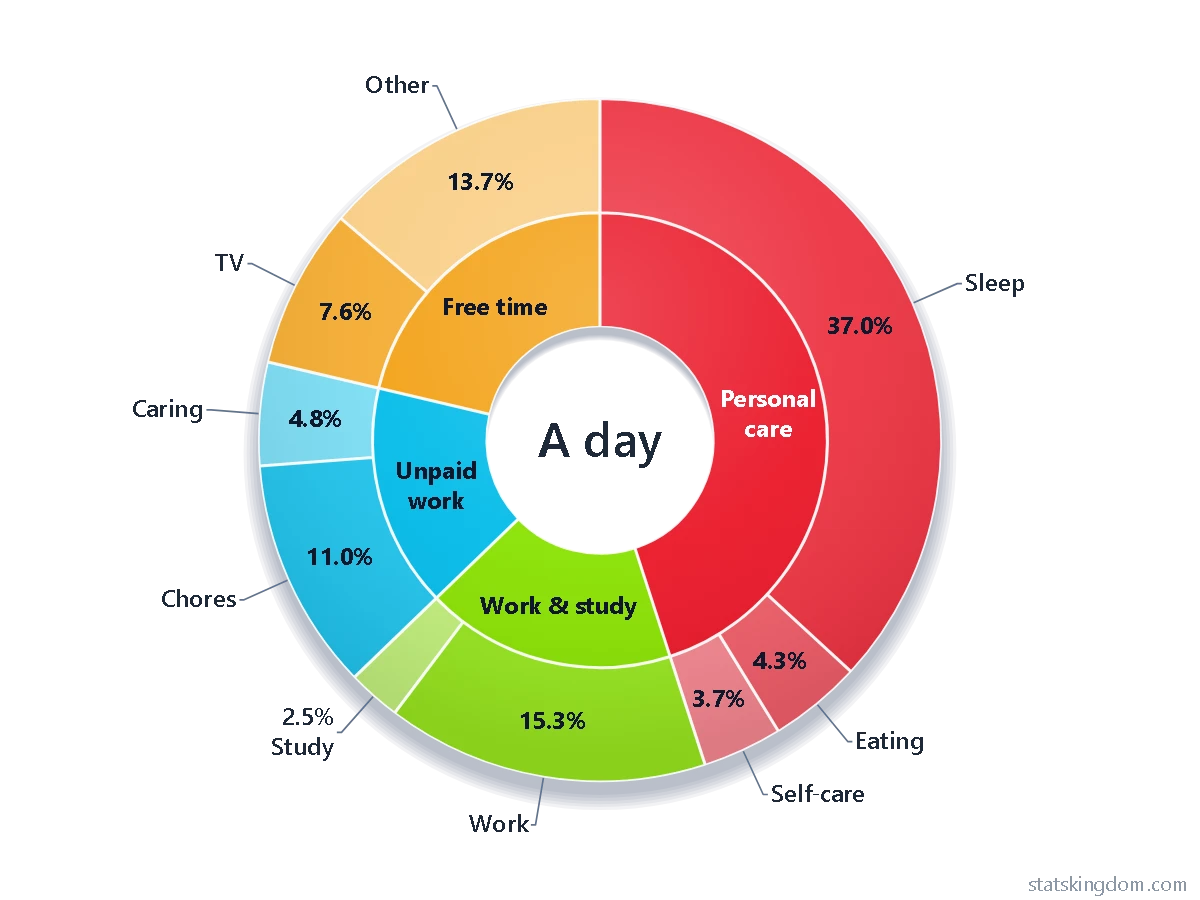
The example is real: how Australians aged 15 and over spend an average day, in minutes. The inner ring shows the four types of time that the Australian Bureau of Statistics uses: personal care (643 minutes, 45.1%), work and study (253, 17.7%), unpaid work (226, 15.8%) and free time (304, 21.3%). The outer ring splits each one, right outside its own group: sleep, eating and other self-care such as washing, dressing and health; work (with the travel to it) and study; chores such as cooking, housework, shopping, the garden and pets, and caring for children and adults (with volunteering); TV or streaming, and all other free time. The averages count everyone, also the people who did not do an activity that day. The chart adds up to 23 hours 46 minutes: 15 minutes of the average day are left out (time that could not be coded, no activity, or filling in the survey diary), and work and study add up to one minute more than the published total, because the ABS adjusts every figure a little at random to protect privacy. Source: How Australians use their time, 2024, Table 1.1, Australian Bureau of Statistics.
How to lay out the data
- Name columns first, numbers after. Each column of names is one ring, from the inside out: Division, then Department, then Team for three rings (up to four). Then comes the column of numbers.
- Names or numbers? A column with at least one word holds names; a column of numbers only holds numbers. The small squares beside each column name show which: a b for names, 1 2 for numbers. When a column of codes such as 1, 2, 3 is really a list of groups, click its squares to make it names.
- Empty name cells at the start of a row mean the same as the row above, the way Excel and pivot tables write a group's name once.
- The same names twice are added together.
- One column of names only? Then there are no rings to draw, and you get a plain pie (or a doughnut while Hole is ticked).
- More columns of numbers draw one nested pie each, up to four in one picture, with the same names and colors.
Colors, the hole and the labels
- Colors: each slice of the inner ring takes a color from the palette, and the slices around it are lighter shades of that color, so a group and its parts read as one family.
- Hole: ticked, the middle is a hole as wide as one ring, and you can write a short message in it with Hole message. Untick it and the inner ring becomes a full pie.
- Labels: choose where the names, values and percents go. On the outer ring they go inside the slices or outside with a line, as on a pie chart. On the inner rings they always stay inside the slices; a label that does not fit keeps just its name, puts a name of two words on two lines, or uses smaller text, and only a label that still does not fit is left out (the legend still names its group). Tick Numbers only in the outer ring to show only names on the inner rings.
- Percent of: each percent is a share of the whole chart, or of the slice it belongs to. With the example, TV is 7.6% of the whole chart, and 35.5% of free time.
When to use a nested pie chart
- Use it when the parts belong to groups and both levels matter: budget by department and by item, sales by region and by product, visits by channel and by source.
- Keep it small: a few groups and a few parts in each. With many small parts, a stacked bar chart is easier to read.
- For one level only, use the pie chart maker.
Download and use your chart
- PNG is a picture, saved at twice the size you see so it stays sharp. With the background set to None it is see-through around the chart.
- SVG is a vector file: it stays crisp at any size and opens in programs such as Inkscape, Illustrator or PowerPoint, where it looks the same as here.
- Copy image puts the chart on your clipboard, ready to paste.
- Your data stays on your computer. The chart is drawn in your browser, and your last chart is remembered in this browser only: press Last run in step 2 to bring it back.
Frequently asked questions
Is this nested pie chart maker free? Do I need an account?
It is free, and there is no sign-up or login. Pick a chart and start typing your data.
Is a nested pie chart the same as a sunburst chart?
Yes, mostly. Both show groups in an inner ring and their parts in the rings around them. A sunburst chart usually has no hole in the middle; here you choose: tick or untick Hole.
How many rings can it have?
Up to four: one for each of the first four columns of names. Each ring gets the same width.
What happens to zero, blank or negative numbers?
A zero or a blank draws no slice. A negative number cannot be a share of a whole, so it is left out, and a note under the chart says so.
Why is there a small “statskingdom.com” on my chart, and can I remove it?
By default a small statskingdom.com mark sits in the bottom corner of the chart, and it is part of the downloaded image, like a photo credit. It is your choice: in step 3, under Labels, type your own name or company in the Watermark box, or clear the box for no watermark.
If you like the page, please share or like it. Questions and suggestions are welcome at [email protected]. No reply? Check your spam folder.